For shop owners
Saleculator helps shops start billing quickly, print receipts, manage day-to-day counter work, and evaluate the system with a 30-day trial before purchase.
 Start trial
Setup support
Use this guide to prepare a single billing counter, a multi-counter shop, or a reseller-managed POS device with a clean trial, handover, and support path.
Saleculator helps shops start billing quickly, print receipts, manage day-to-day counter work, and evaluate the system with a 30-day trial before purchase.
Prepare the customer's business details, receipt format, devices, users, backup routine, and first-day training before handing over the POS.
Shop owners can start from the download page when the installer is available. Resellers and hardware vendors can use the vendor package for controlled deployments.
New evaluators can start the 30-day trial from the Saleculator activation screen and continue with a paid license after the setup is proven.
Setup sequence
Confirm the installer status on the download page, then complete setup with a reseller or support technician if the customer needs assistance.
Hardware vendors can prepare dedicated POS devices that boot directly into Saleculator and hide unnecessary desktop options from the cashier.
For multiple counters, connect every POS to the same shop database so products, sales, users, and reports stay consistent.
A good handover includes a sample sale, printed receipt, day report, backup confirmation, restart test, and a short cashier walkthrough.
Before support
Product visuals
 Video
VideoShow the journey from download to business setup, trial activation, PIN login, test sale, receipt, and backup.
GraphicShow retail, supermarket, restaurant, and delivery setup choices in one simple visual.
ScreenshotShow the kind of information support needs without exposing passwords or serial keys.
Guided setup support
Saleculator can be evaluated by a shop owner, installed by a reseller, or prepared by a hardware vendor. Start with the right business type, confirm the counter devices, complete the trial activation, and test one full billing flow before go-live.
Download the Windows installer, enter business and receipt details during setup, start the 30-day trial, then test billing, receipt printing, reports, and backup with sample products.
Prepare the customer profile, device list, receipt format, tax settings, users, and backup plan before handover. Confirm the customer can complete daily billing without depending on the installer.
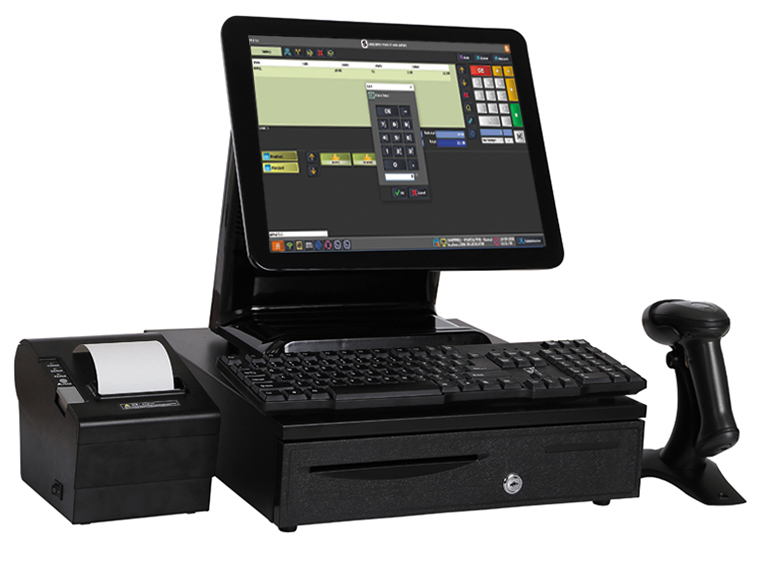
Use the vendor package for controlled rollouts on POS devices, Linux, and Raspberry Pi class hardware. Validate display, printer, scanner, cash drawer, network, reboot, and recovery behavior before delivery.
Use a reliable central database machine and connect every counter to the same shop database so products, sales, and reports stay consistent across counters.